
WordPress 7.0 Released: Pros, Cons, and What to Watch Out For

WordPress 7.0 “Armstrong” has officially arrived, named after the legendary Louis Armstrong. The stable release date slipped several times, but the WordPress core team finally shipped the final version on May 20, 2026. According to Core Trac, developers closed 419 tickets, including more than 300 bug fixes.
The Admin UI: Love It or Hate It
This is the first thing you notice after logging in. My first impression felt like stepping back into 2009—or even earlier. Back then Google used the color #0000EE for links, the same blue browsers displayed by default. Technically, the new WordPress admin uses #3858e9, which is slightly lighter, but it is still much darker and more aggressive than the familiar #2271b1 that users have grown accustomed to over the years.
A lot of users are reporting eye strain, and honestly, I get it — the WordPress admin is a work environment, not a marketing landing page. You spend hours in it every day. It should be fast, predictable, and comfortable to look at.
Fortunately, switching back to the familiar colors takes only a few seconds. go to your profile settings and switch Administration Color Scheme to “Fresh”. Two clicks and you’re back to normal.
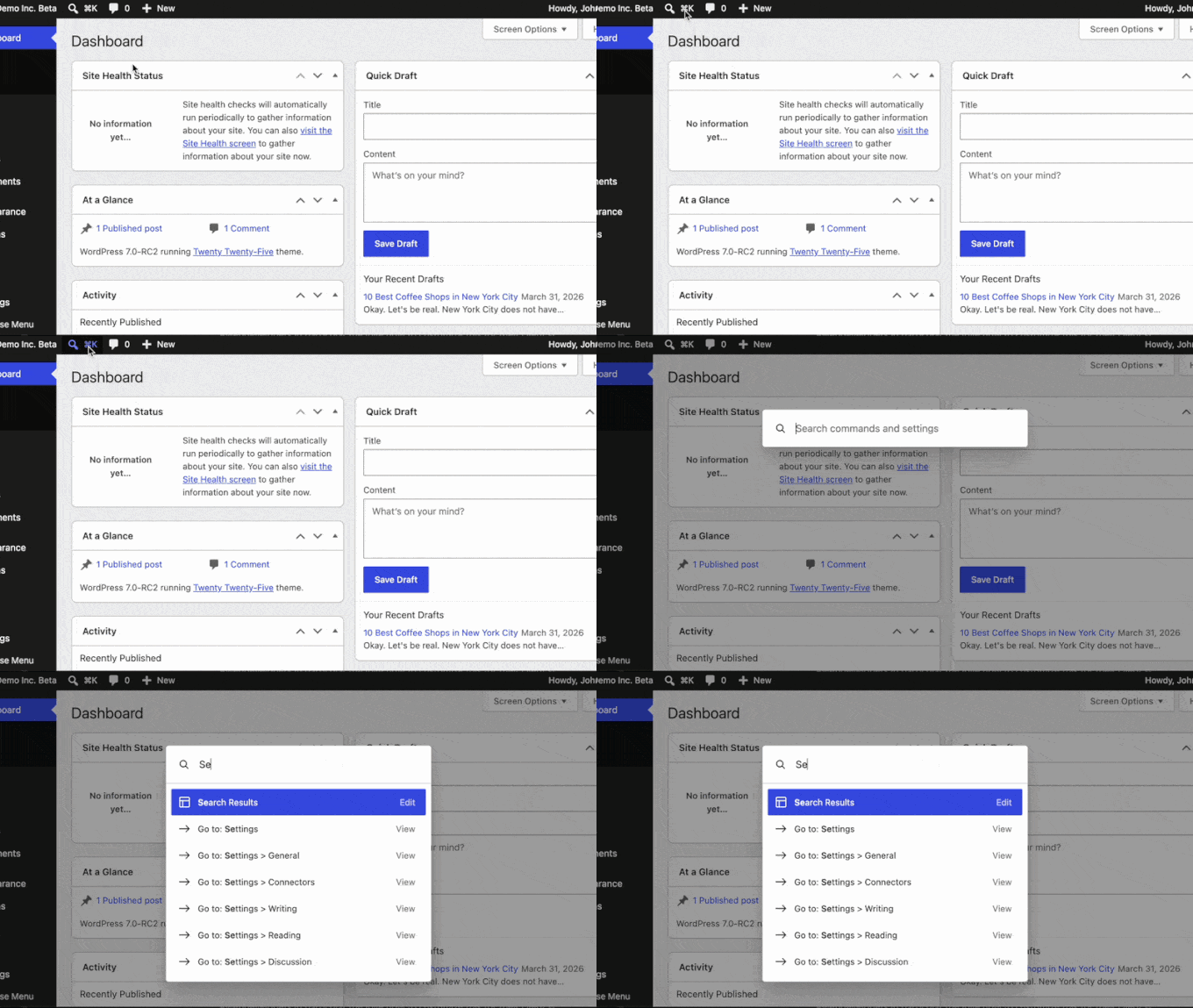
What I do genuinely like is the Command Palette finally landing everywhere. Previously it was editor-only. Now ⌘+K (or Ctrl+K on Windows) works from any admin screen. Small thing, big quality-of-life improvement.
Gutenberg in an iframe — Finally
This one matters if you do any serious WordPress development. In 6.9, the block editor started moving into an isolated iframe, but only for blocks with apiVersion 3. WordPress 7.0 completes that transition fully.
Why does this matter? Because for years, CSS from your theme, your plugins, and the admin itself would bleed into the editor and create conflicts. Every WordPress developer has a story about a theme style breaking the block editor or vice versa. The iframe puts a clean wall between the editor and everything else — proper sandboxing, no more style leakage. This should have shipped two years ago, but better late than never.
AI Connectors — One Interface to Rule Them All
WordPress 7.0 adds a Settings → Connectors page where you can hook up external AI providers — OpenAI, Claude, Gemini — through a single unified interface. There’s also a new WP AI Client: a standardized API that plugins and themes can use to communicate with any connected provider.
From a development standpoint, this is actually useful. Right now, every AI plugin does its own thing — stores API keys differently, routes requests differently, has its own settings page. If WP AI Client gets real adoption, it means one configuration point for the client and less boilerplate for the developer.
If you prefer not to use AI features at all—whether for privacy reasons or simply to reduce overhead—you can disable support entirely by adding the following line to wp-config.php:
define( 'WP_AI_SUPPORT', false );New Blocks: The Good, the Meh, and the Missing
Breadcrumbs — now it ship with WordPress core, eliminating the need for a third-party plugin. For simple landing pages and small websites this may be sufficient. For anything serious — skip it. The built-in block doesn’t output ld+json structured data, which is a real SEO limitation. And from a workflow perspective: paying a developer once to build proper breadcrumbs into the template beats manually dropping a block into hundreds or thousands posts.
Icons — SVG icons without a plugin sounds great until you find out that popular libraries like Font Awesome and Heroicons aren’t included. Custom icon set registration is promised for 7.1. So right now it’s half a feature.
Gallery with Lightbox — the Gallery block now includes a built-in lightbox with Previous and Next navigation buttons and keyboard arrow support. Clean, useful, no complaints.
Cover Block with video background — you can now use a video URL as a section background without uploading the file to your server. Practical addition.
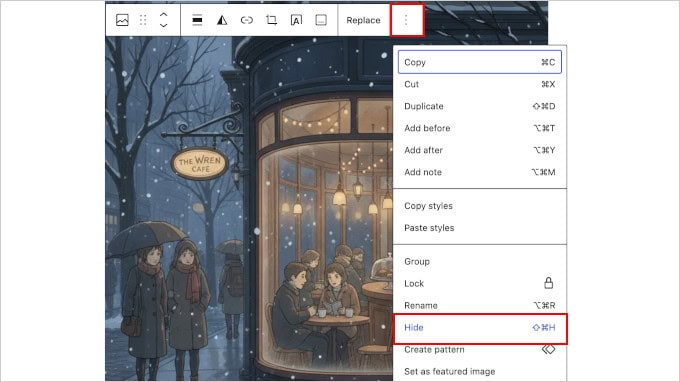
Responsive block visibility — hiding blocks per device type is now built in. I’d call it useful but not quite native-feeling. You have to dig into the three-dot menu to find the Hide option. It should be a first-class control in the block toolbar, not buried in a dropdown.
PHP-Only Blocks — This Is the One
Honestly, this is what I’m most excited about in WordPress 7.0. You can now register blocks entirely in PHP — no JavaScript, no React, no npm install. One register_block_type() call and the block appears in the editor.
String attributes become text fields. Booleans become toggles. Enums become dropdowns. WordPress generates the inspector panel automatically. All from PHP.
Before this, creating a custom block meant either buying Advanced Custom Fields Pro or writing a React component. For the kind of blocks most client projects actually need — product mentions, CTA sections, contact info blocks — PHP-only registration is going to save a serious amount of development time.
By the way, my plugins have already been updated and tested for compatibility with WordPress 7.0.
System Requirements: Read This Before You Upgrade
PHP 7.4 is the official minimum, same as before — so at first glance it seems like any server running WordPress 6.9 should be fine. It’s not that simple.
The harder requirement is the database. WordPress 7.0 requires MySQL 8.0+ or MariaDB 10.6+. The admin has been completely rebuilt on DataViews, which relies on window functions and CTE queries that older database versions simply don’t support. If you push WordPress 7.0 onto an old database server, the admin will stop rendering and start throwing fatal errors. No graceful degradation — it just breaks.
Memory is the other one to watch. Previous versions could run comfortably on 128MB with proper optimization. WordPress 7.0 needs 256MB minimum even without AI features. If you plan to use AI features, allocate at least 512 MB. The AI layer makes heavy external HTTP requests, processes large text payloads, and caches responses. Below 512MB you’ll start seeing “Fatal Error: Allowed memory size exhausted” on a regular basis.
Should You Upgrade from 6.9.x?
Think of WordPress 7.0 the way you’d think about a major renovation — load-bearing walls moved, pipes replaced, new wiring throughout. Things that worked before might not work for reasons that have nothing to do with your code.
If your site generates revenue or supports anything business-critical, the answer is: not upgrade directly to production. Set up a staging environment that matches the new requirements (MySQL 8.0+, 512MB RAM and etc.), run the upgrade there, test everything thoroughly — plugins, theme, custom code. Only move to production when you’ve confirmed there are no conflicts, or when any conflicts and issues are already resolved.
If you are unsure about the process or do not have a staging environment available, I can help with the migration and testing using a staging server on my side. Feel free to contact me on Upwork.
Related posts:

My Plugins on WordPress Repo Were Closed During the War
Today I discovered that my plugins on WordPress Repo were closed. This was not due to any vulnerabilities, copyright issues, or violations. The problem came from my email [...]
What’s New in WordPress 5.1
WordPress 5.1 available on February 21, 2019. It have name “Betty” in honoring American jazz singer Betty Carter. WordPress 5.0 had been downloaded more than 35 million times [...]